
Word Counter Google Docs: The Ultimate 2026 Guide to Tracking Your Word Count
Published on January 6, 2026
⏱️ 8 min read
Whether you are a student pulling an all-nighter for a 2,000-word essay, a freelance writer paid by the word, or a novelist aiming for that 80,000-word manuscript, one metric rules your life: the word count.
Google Docs has become the world's default writing app, but many users are not getting the most out of its features. In this comprehensive guide, we will explore the "Word Counter Google Docs" ecosystem. We will cover how to use specific native tools, the keyboard shortcuts that save you seconds every day, and why relying solely on Google's built-in counter might be holding you back from deeper writing insights.
📊 How to Check Word Count in Google Docs (The Basics)
Let's start with the fundamentals. If you are new to the platform, finding the count is simple but not always obvious. Here are three ways to do it.
1. The Menu Method
This is the standard way to check your stats:
- Open your Google Doc.
- Click on Tools in the top menu bar.
- Select Word count from the dropdown menu.
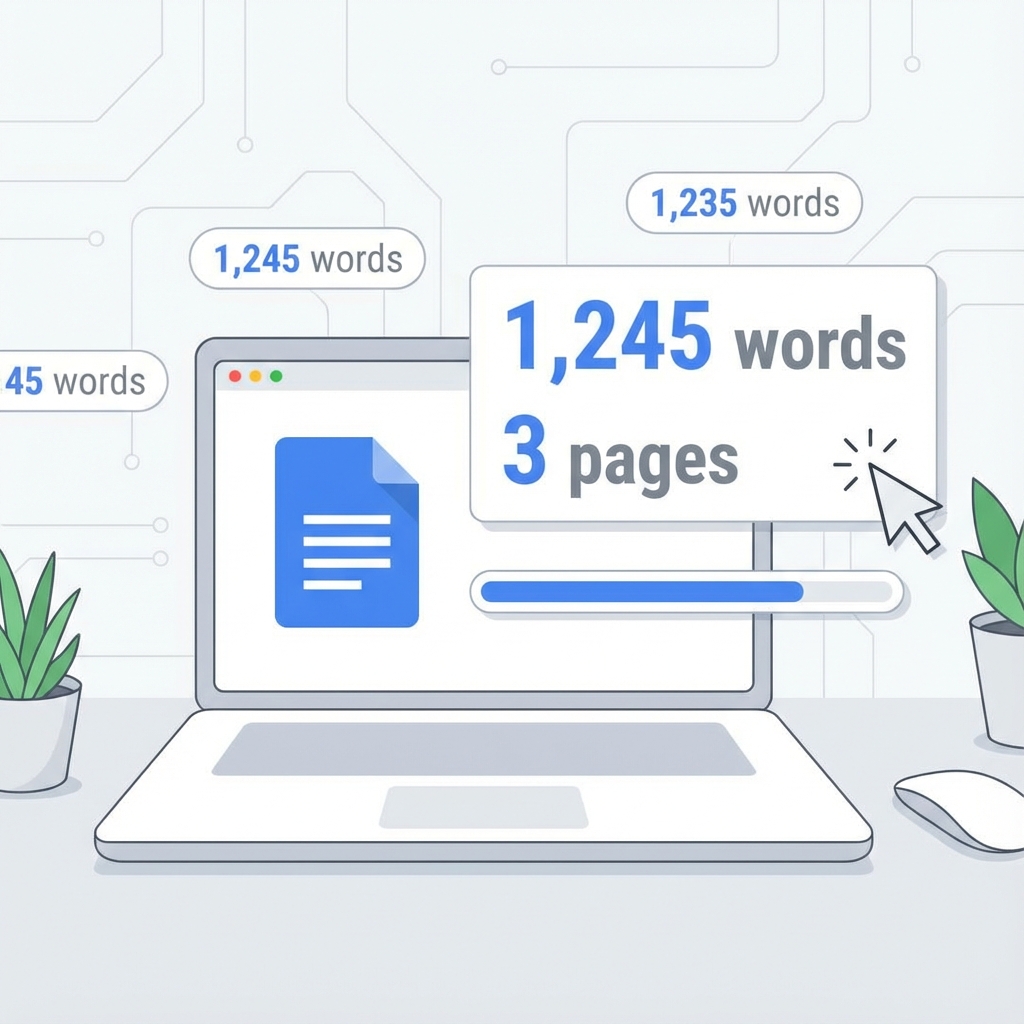
A pop-up box will appear showing four key metrics: Pages, Words, Characters, and Characters (excluding spaces).
2. The Keyboard Shortcut (Speed Method)
Professional writers don't click menus. They use shortcuts. Memorize these to speed up your workflow:
- Windows/Chromebook: Press
Ctrl + Shift + C - Mac: Press
Command + Shift + C
3. The Live Counter Display
Tired of checking manually? You can pin the count to your screen:
- Open the Word Count box using one of the methods above.
- Check the box at the bottom that says "Display word count while typing".
- Click OK.
Now, a small box will sit in the bottom-left corner of your document, updating in real-time as you type. Click it to cycle between pages, words, and characters.
Pro Tip: Counting Selected Text
Want to know the length of just one paragraph? Highlight the text first, then use the shortcut. Google will display the count as "150 of 2,000 words," showing you the selection relative to the total.
🚀 Why Native Tools Aren't Enough: The Case for External Counters
If Google has a built-in counter, why do thousands of writers use our Word Counter Google Docs Tool? The answer lies in data depth.
Google's native tool is a basic calculator. It gives you a number, but it doesn't tell you what that number means. External tools like ours provide a dashboard of analytics that can improve your writing style, not just measure its length.
Google Native Tool
- ✓ Word Count
- ✓ Character Count
- ✗ Speaking Time
- ✗ Reading Level
- ✗ Keyword Density
Our Advanced Tool
- ✓ Everything Google does, plus...
- ✓ Speaking & Reading Time Estimates
- ✓ Flesch-Kincaid Readability Scores
- ✓ Top Keyword Analysis (SEO)
- ✓ One-Click PDF Reports
By copying your text into our tool, you transform raw data into actionable insights. For example, knowing your Readability Score can help you decide if you need to simplify your language for a wider audience. Checking Keyword Density ensures you aren't accidentally overusing certain words (a common SEO mistake).
📱 Word Counting on Mobile (iOS & Android)
Writing on the go? The process is slightly different on mobile devices:
- Open the App: Launch the Google Docs app on your iPhone or Android.
- The "More" Menu: Tap the three dots (hamburger menu) in the top-right corner of the screen.
- Word Count: Tap "Word count" in the list. A small panel will slide up showing your metrics.
Note: The "live count" feature (pinning the count to the screen) is currently NOT available on the mobile app. To get real-time feedback on mobile, many users prefer drafting in our online editor which is fully responsive.
🎓 Common Word Count Questions Answered
Do footnotes count in the total?
In Google Docs, footnotes, headers, and footers are excluded by default from the word count. If you need them included, you have to go to Tools > Word count and check "Include footnotes."
Does Google Docs count symbols?
Generally, no. Symbols like "&", "@", or emojis are often ignored or counted irregularly. Our Character Count Tool captures every single keystroke, making it more accurate for tweets or meta descriptions.
What is the word count limit for Google Docs?
Google Docs has a technical limit of 1.02 million characters per document. Once you hit this, the document becomes read-only to prevent crashing. If you are writing a multi-volume fantasy epic, you might need to split it into specific chapters!
🎯 Final Thoughts: Count Smarter, Not Harder
The "Word Counter Google Docs" feature is a trusty utility for basic checks, but it shouldn't be the end of your analysis. Writing is about impact, not just volume.
Whether you stick to the native menu shortcuts or upgrade your workflow with our specialized analytics dashboard, the goal remains the same: use the data to become a better writer. Don't just count the words—make the words count.
Need a deep analysis of your Doc?
Copy your text and paste it into our advanced tool to see your Reading Level, Speaking Time, and Keyword Frequency instantly.
Launch Advanced Counter →